To close a room, go to the "Calendar" page in VikBooking. Click the checkbox labelled "Close Rooms in These Dates" as shown in the following image:
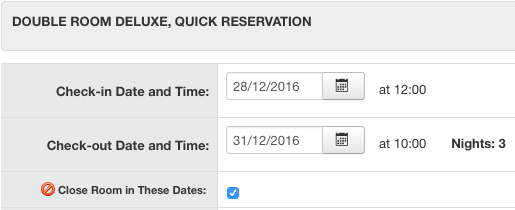
Select for which dates you want to close the rooms, then save. You will be redirected to the "All Bookings" view. The closed room should look as follows:

If the function "Auto-Sync" is enabled on both VikChannelManager and VikBooking, you don't need to do anything: the changes have already been sent to the channels. Otherwise, go to the "Bulk Action - Copy Availability" page on VikChannelManager, select the rooms you closed, and send their availability to all channels.
Remember: "Bulk Action - Copy Availability" will update the room's availability for all channels. If you wish to close the room only on a single channel please use the "Availability and Rates" page.
test 2
CONTACT US
about the booking engine or channel manager.
We will get back to you as soon as possible.
e4jConnect.com and e4j - Extensionforjoomla.com are not affiliated with or endorsed by the Joomla! Project or Open Source Matters.
The Joomla! name and logo is used under a limited license granted by Open Source Matters the trademark holder in the United States and other countries.
E4J s.r.l. - VAT N. 06794860483